Getting Started
tradumak is a professional Computer-Assisted Translation (CAT) tool for macOS that helps translators work with documents efficiently. It supports segment-based translation with translation memory, terminology management, quality assurance, LLM-powered machine translation, and concordance search features.
Creating a New Project
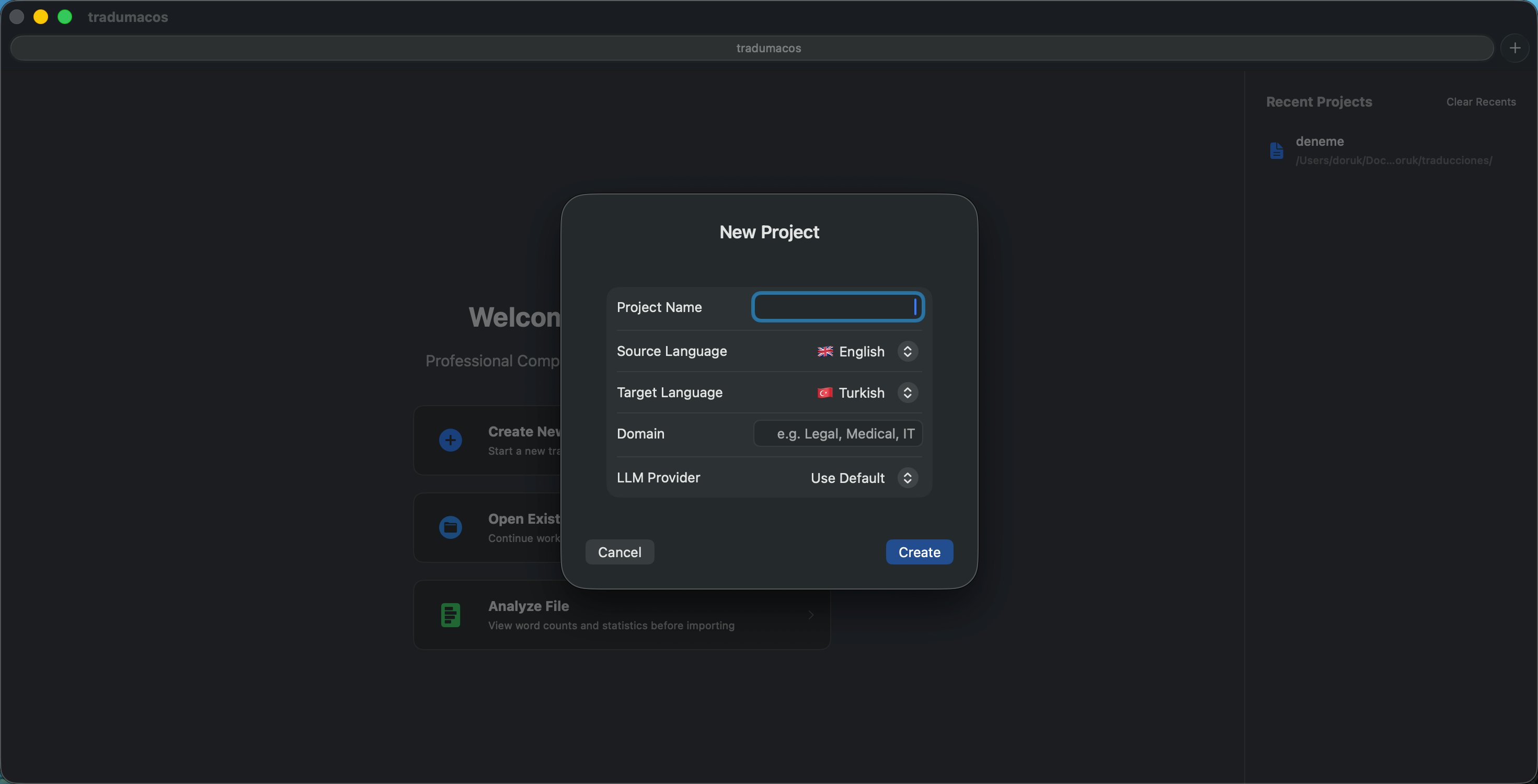
- Go to File > New Project (⌘N) or click the New Project button on the welcome screen.
- Enter a project name.
- Select the source language (the language you are translating from).
- Select the target language (the language you are translating into).
- Optionally enter a Domain (e.g., “Legal”, “Medical”, “Technical”). The domain is used by Translation Memory scoring — TM entries from a different domain receive a penalty, keeping results relevant to your subject area.
- Optionally select an LLM Provider for this project. Choose from providers you have configured in Settings, or leave it as “Use Default” to use the global default provider. This lets you use different AI models for different projects (e.g., a specialized model for legal texts).
- Click Create.
tradumak supports 12 languages: Turkish, English, German, French, Spanish, Italian, Portuguese, Russian, Chinese, Japanese, Arabic, and Korean.
The source and target language pickers default to the languages configured in Settings > Files (Default Source Language and Default Target Language).
Opening an Existing Project
Go to File > Open Project… (⌘O) or click Open Existing Project on the welcome screen, then select a .tradumak project file.
Welcome Screen
When you launch tradumak without an open project, a welcome screen is displayed with three action buttons on the left:
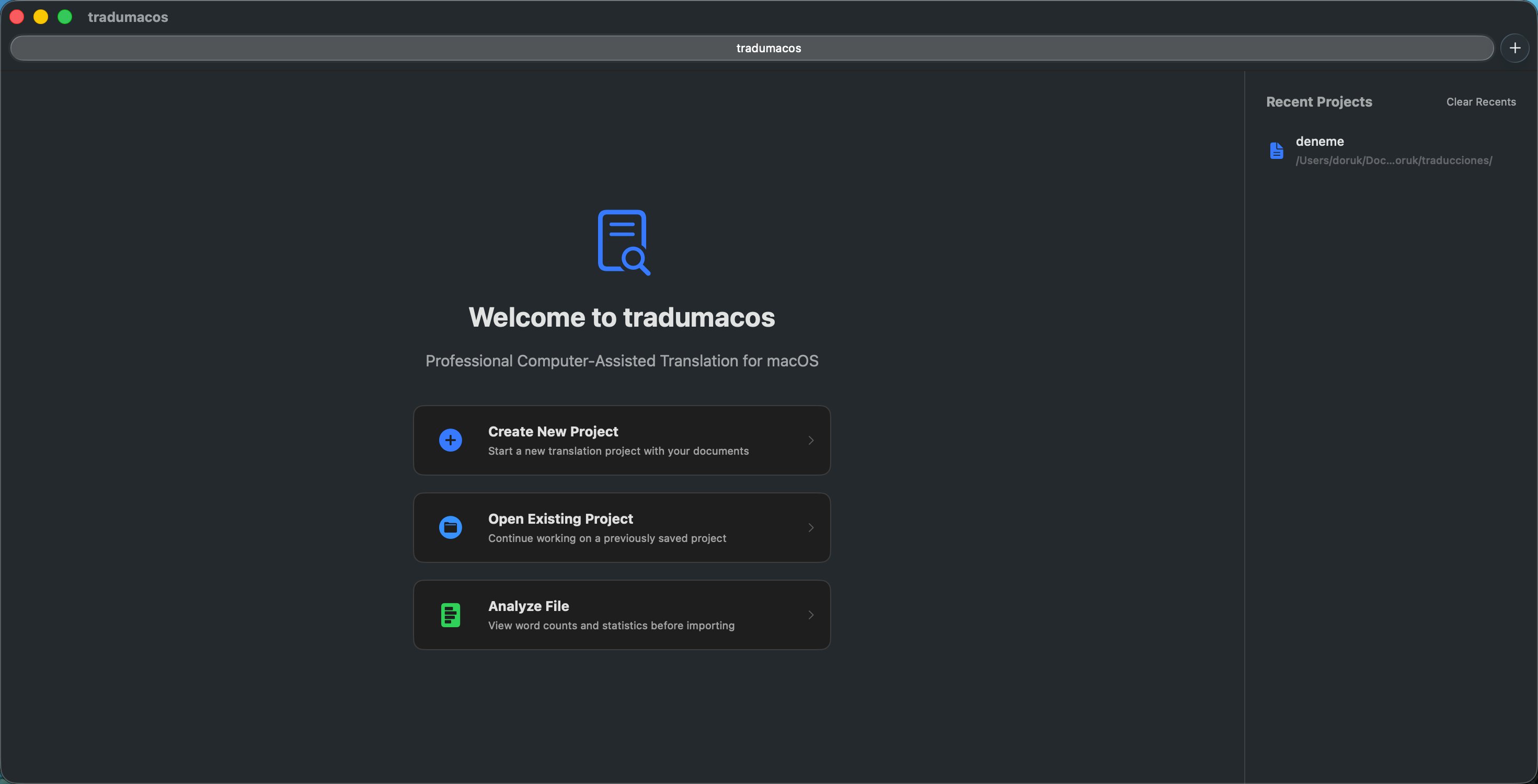
- Create New Project — Opens the New Project dialog.
- Open Existing Project — Opens a file browser to load a saved project.
- Analyze File — Opens the analysis workspace where you can add files and view statistics (segment count, word count, etc.) before importing.
Recent Projects Panel (Right Side)
When you have previously opened or saved projects, a Recent Projects panel appears on the right side of the welcome screen. This panel lists up to 10 of your most recently used projects, showing each project’s name and file path. Click any project to open it instantly without navigating through the file browser.
- Projects are recorded automatically when you open, save, or save-as a project.
- Projects whose files no longer exist on disk are automatically filtered out.
- Click Clear Recents at the top of the panel to clear the entire list.
- The panel does not appear on first launch when no projects have been opened yet.