Settings
Access Settings via tradumacos > Settings... (⌘,). Settings are organized into seven tabs:
Subscription
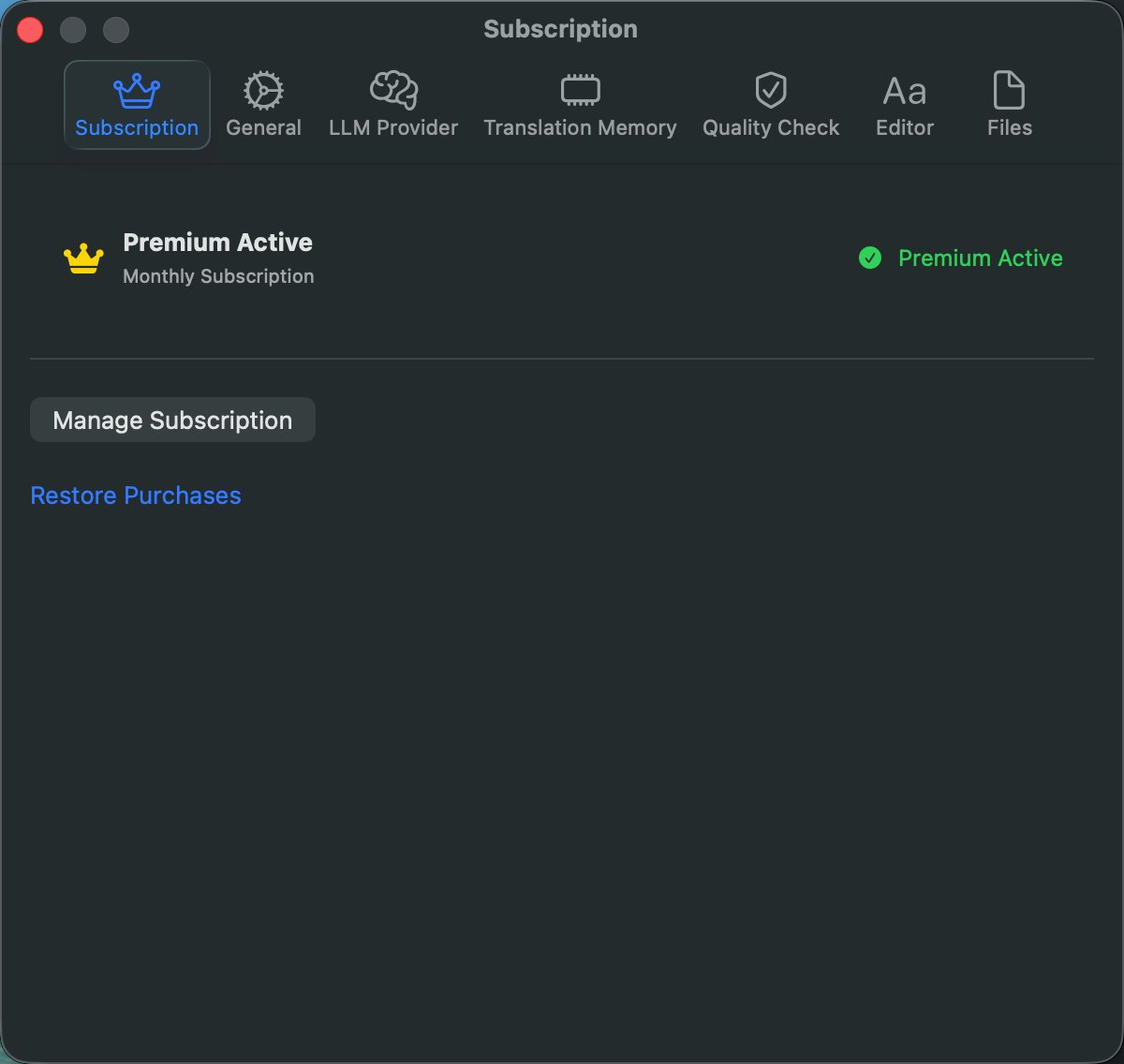
The first tab in Settings, showing your current subscription status and management options.
When Premium Is Active
- A gold crown icon and green "Premium Active" badge confirm your subscription.
- Manage Subscription — Opens the App Store subscription management page in your browser, where you can view billing details, change plans, or cancel.
- Restore Purchases — Re-syncs your entitlements from Apple's servers. Useful after reinstalling the app or switching devices.
When on the Free Tier
- A crown outline icon and "Free" label indicate the free plan.
- Upgrade to Premium — Opens the Paywall sheet showing all premium features, the monthly price, and a subscribe button.
- Restore Purchases — For users who previously subscribed and need to restore access.
See the Subscription & Premium page for details on what each tier includes.
General
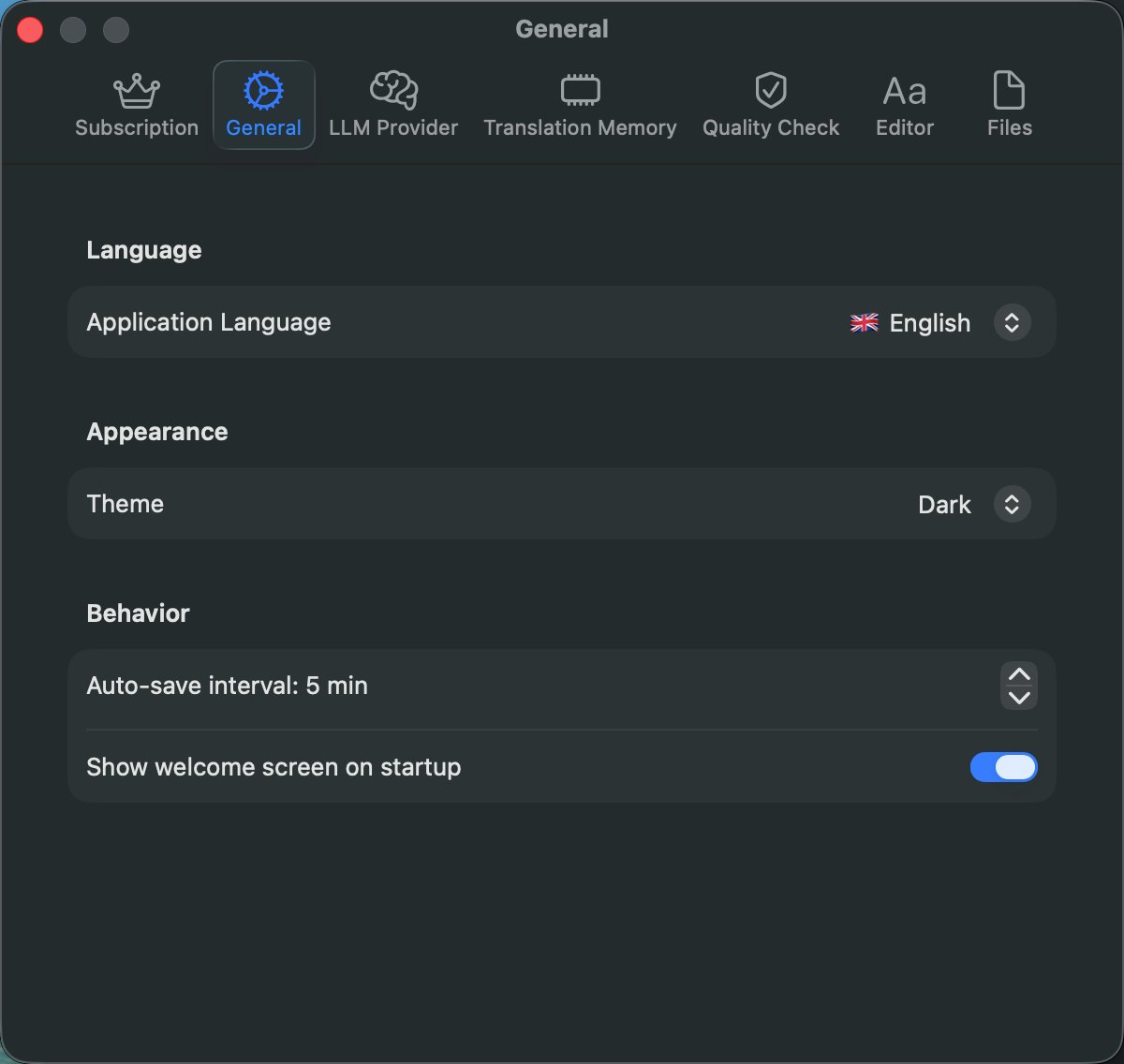
Organized into three sections:
Language
- Application Language: Switch the interface language between English, Spanish, French, and Turkish. Each option shows its flag emoji and native name. Changes take effect immediately without restarting — all UI strings update in place.
Appearance
- Theme: Choose between System (follows macOS system appearance), Light, or Dark mode. This applies to the entire application including the Settings window.
Behavior
- Auto-save Interval: Set the interval for automatic project saving (1-30 minutes, stepper). Auto-save only triggers when there are unsaved changes and the project has been saved to disk at least once.
- Show Welcome Screen on Startup: Toggle whether the welcome screen appears when the app launches without an open project. When disabled, a minimal empty state with "New Project" and "Open Project" buttons is shown instead.
LLM Provider
Configure one or more LLM providers simultaneously. Each provider has its own expandable configuration card.
Provider Cards
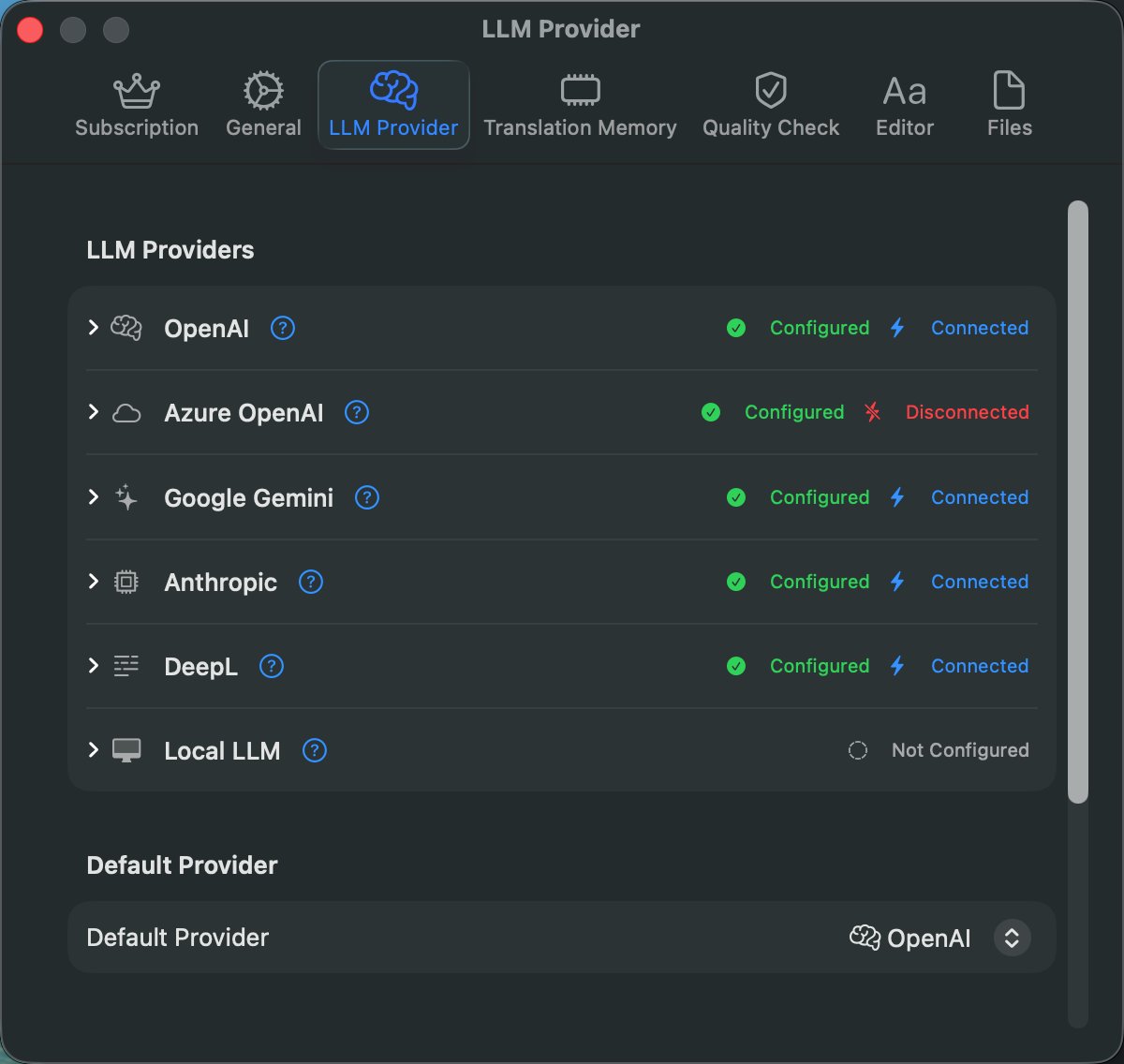
The settings page lists all six supported providers (OpenAI, Azure OpenAI, Google Gemini, Anthropic, DeepL, Local LLM) as expandable cards. Each card shows:
- The provider name, icon, and a ? (help) button for setup instructions.
- A status badge: Configured (green checkmark) if authentication is saved, or Not Configured (dashed circle) if not.
- Auto connection status: When you open the LLM Settings tab, all configured providers are automatically tested in the background. Each provider card displays a real-time connection status:
- A spinner while the connection test is in progress.
- Connected (blue bolt icon) when the provider responds successfully.
- Disconnected (red bolt.slash icon) when the provider cannot be reached or returns an error.
- Click the card to expand it and reveal the configuration fields.
Help Button (?)
Click the ? button next to any provider name to open a help sheet with step-by-step instructions for obtaining and configuring an API key. For cloud providers, the sheet includes a direct link to the provider's API key page. For Local LLM, the sheet shows setup guides for Ollama, LiteLLM, and vLLM with endpoint URLs and terminal commands.
Configuration Fields
- API Key — Secure text field for the provider's API key. Required for cloud providers, optional for Local LLM.
- Model — Dropdown picker for most cloud providers (provider-specific model list). For Local LLM, a text field where you type any model name installed on your server. For Azure OpenAI, a text field labeled Deployment Name where you enter your Azure deployment name (found in Azure AI Studio → Deployments). This is the deployment name, not the model name — Azure uses deployment-based routing.
- Custom Endpoint — URL field shown for Azure OpenAI (resource endpoint, e.g.,
https://myresource.openai.azure.com) and Local LLM (server address likehttp://localhost:11434/v1).
All API keys are stored securely in the macOS Keychain, never in project files.
Test Connection
After entering your API key, click the Test Connection button (bolt icon) to verify that the provider accepts your credentials. The test sends a minimal request ("Say hi" with max 5 tokens) to keep cost and latency minimal. Results appear inline:
- Green checkmark — "Connection successful" — credentials are valid and the provider responded.
- Red X with error message — Shows the specific failure reason in the app's current language (invalid API key, quota exceeded, network error, endpoint unreachable, etc.).
Manual test results also sync with the auto connection status — if you manually test a provider, its Connected/Disconnected badge updates accordingly.
This is especially useful when setting up a new provider, changing API keys, or configuring a custom endpoint.
You can configure multiple providers at once. Only providers with saved authentication appear as options in the New Project sheet and the sidebar provider picker.
Default Provider
Below the provider cards, select which provider is used by default when no project-specific override is set.
Generation Parameters
- Temperature: Control the randomness of LLM output (0.0 = deterministic, 1.0 = creative).
- Max Tokens: Set the maximum response length (256–16,384 tokens).
Translation Memory
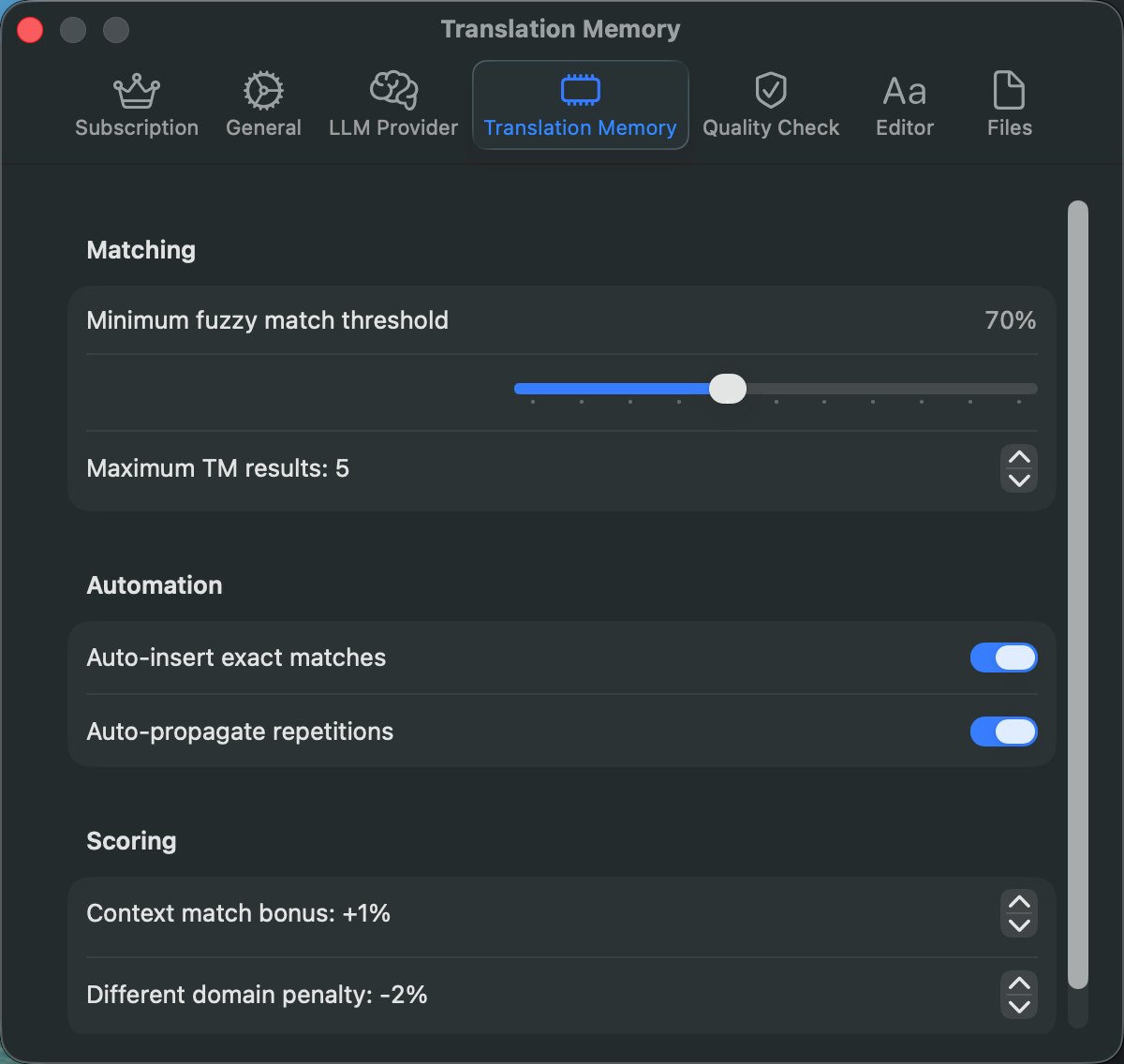
Organized into three sections:
Matching
- Minimum Fuzzy Match Threshold: Set the minimum match percentage for TM results to appear (50%-100%, slider in 5% steps). Lower values show more results but with less accuracy.
- Maximum TM Results: Limit the number of TM matches displayed per segment (1-20, stepper).
Automation
- Auto-insert Exact Matches: When enabled, 100% TM matches are automatically inserted into the target field.
- Auto-propagate Repetitions: When enabled, confirming a segment automatically fills identical source segments throughout the project with the same translation. Also handles number pattern variations — e.g., translating "Page 1" auto-propagates to "Page 2" with adjusted numbers.
Scoring
- Context Match Bonus: Add a percentage bonus to the match score when the surrounding context also matches (0%-10%, stepper).
- Different Domain Penalty: Subtract a percentage from the match score when the TM entry comes from a different domain than the project (0%-20%, stepper). Only applies when both the project and the TM entry have domains set.
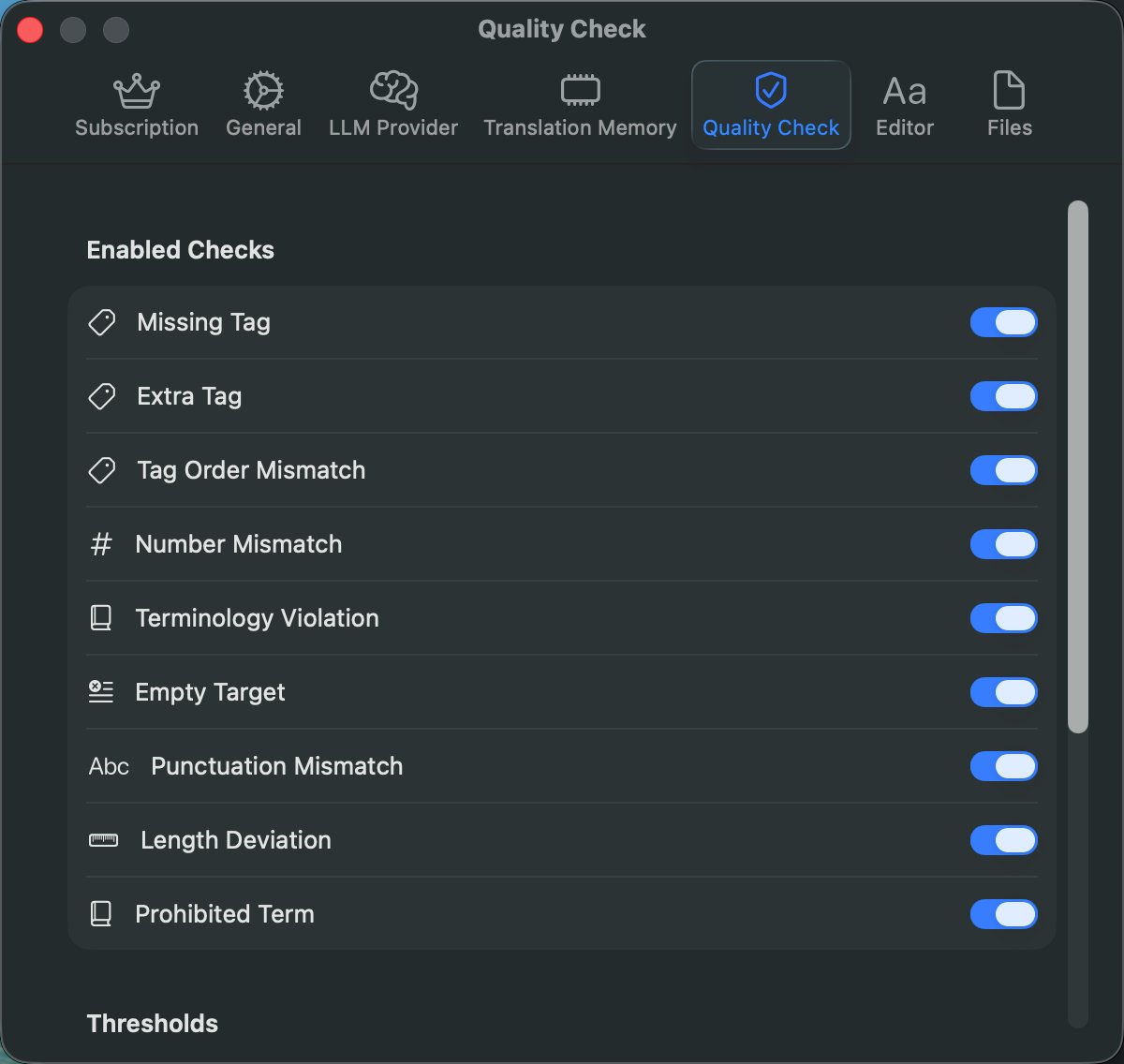
Quality Check
Organized into three sections:
QA Checks
Toggle individual QA checks on or off. Each check has its own toggle with an icon and localized name:
| Check | Severity | What It Detects |
|---|---|---|
| Empty Target | Error | Segments marked as translated/draft/confirmed but with blank target text. Catches accidentally confirmed empty segments. |
| Number Mismatch | Warning | Numbers present in the source but missing from the target, or vice versa. Recognizes integers, decimals, and formatted numbers (e.g., "1,000", "3.14"). |
| Punctuation Mismatch | Warning | Differing terminal punctuation (. ! ? : ; ...) between source and target, and inconsistent Spanish-style inverted marks (¡ ¿). |
| Length Deviation | Info | Translations whose character count differs from the source by more than the configured threshold. Segments shorter than 5 characters are skipped. |
| Missing Tag | Error | Inline formatting tags ({0}, {1}, etc.) present in the source but absent from the target. Missing tags cause lost formatting on export. |
| Extra Tag | Error | Tag placeholders in the target that do not exist in the source. Extra tags can corrupt the exported document's formatting. |
| Tag Order Mismatch | Warning | All tags are present but appear in a different order than the source. Tag order matters for correct nesting of bold, italic, and other formatting. |
| Terminology Violation | Warning | Mandatory glossary terms whose source term appears in the segment but whose required target translation is not found (case-insensitive). |
| Prohibited Term | Error | Target text containing glossary terms marked as prohibited — words or phrases that must never appear in translations. |
Thresholds
- Max Length Deviation: Set the maximum allowed length deviation percentage (10%-100%, slider in 5% steps). A Default button resets it to 30%. This threshold determines when the Length Deviation check flags a translation as too long or too short compared to the source.
Behavior
- Run QA Check on Confirm: When enabled, a QA check runs automatically each time you confirm a segment (⌘↩). Issues are shown in the QA tab.
- Run QA Before Export: When enabled, a full QA check runs automatically before exporting a document. If issues are found, the export still proceeds but the QA tab is updated.
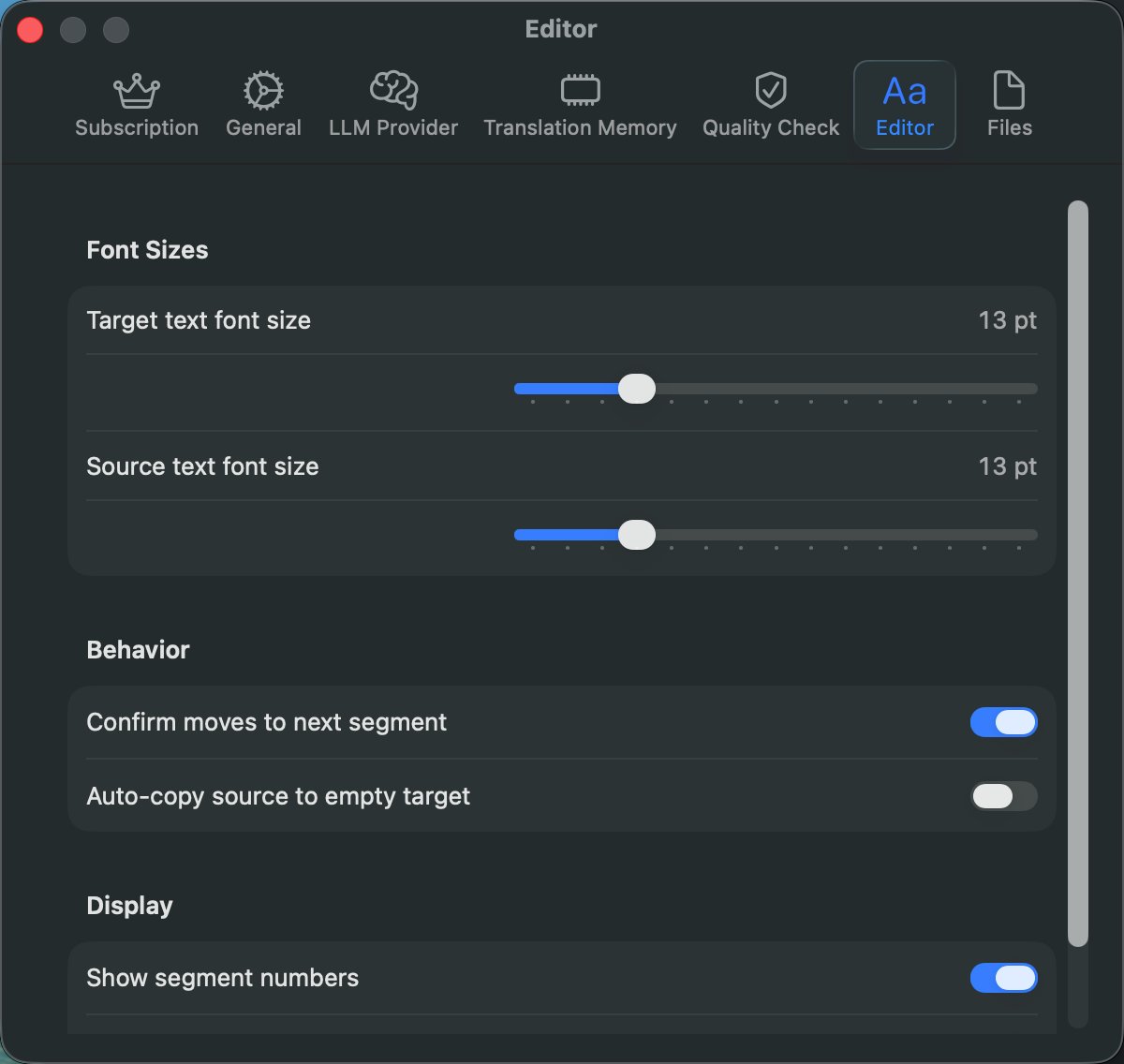
Editor
Organized into three sections:
Fonts
- Target Text Font Size: Adjust the font size for the editable target text field (10-24 pt, slider). This controls the text size in both the editing TextEditor and the read-only display of target text.
- Source Text Font Size: Adjust the font size for the read-only source text display (10-24 pt, slider). Independent from the target font size.
Behavior
- Confirm Moves to Next Segment: When enabled, confirming a segment (⌘↩) automatically advances to the next one. When disabled, the selection stays on the current segment after confirmation.
- Auto-copy Source to Empty Target: When enabled, selecting an untranslated segment automatically copies the source text into the target field as a starting point for post-editing.
Display
- Show Segment Numbers: Toggle the display of segment index numbers in the leftmost column of the editor. Disabling gives more horizontal space for source/target text.
- Show Match Percentage Badges: Toggle the display of TM/MT match percentage badges on segment rows and in the status bar.
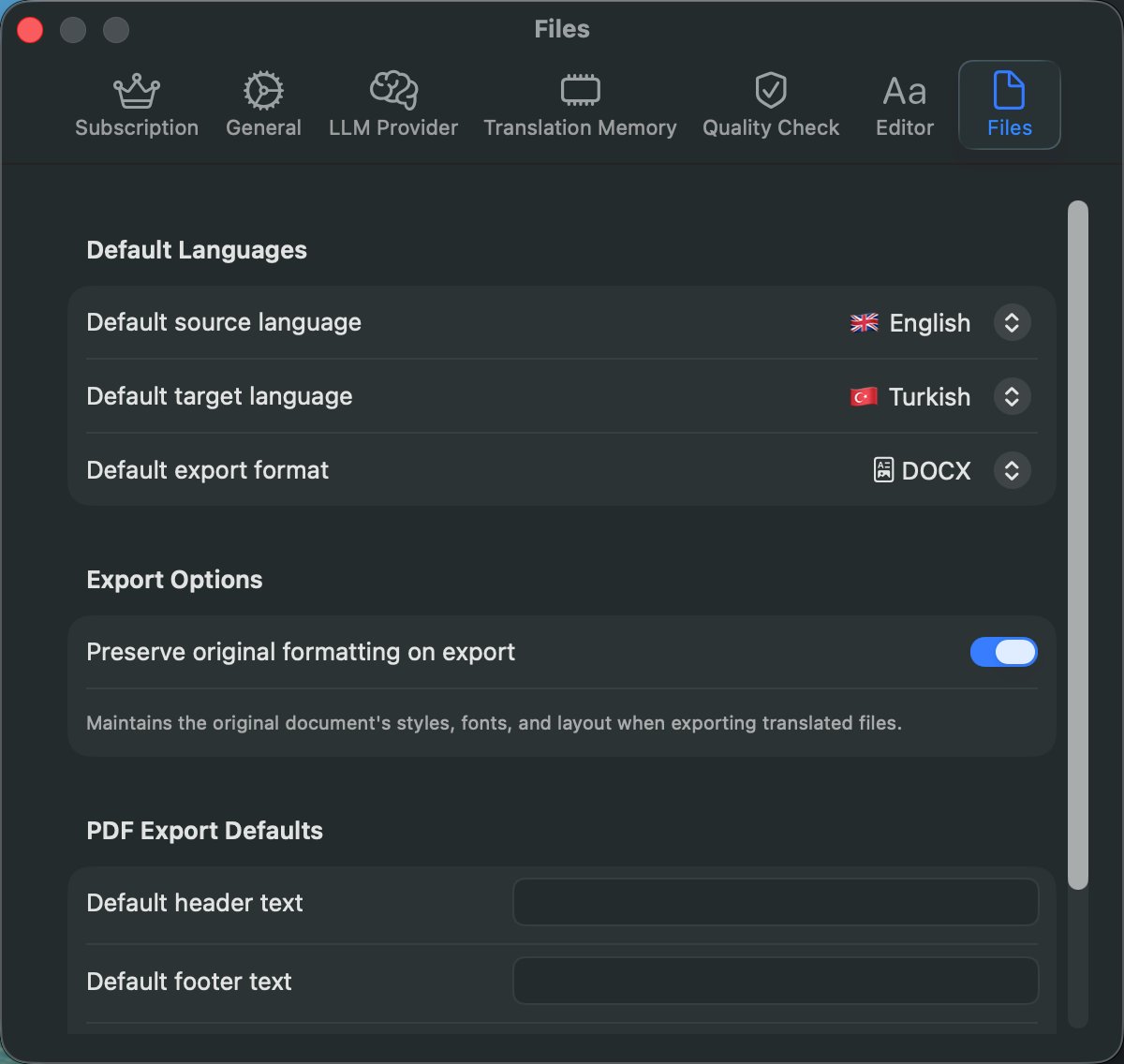
Files
Organized into three sections:
Defaults
- Default Source Language: Set the default source language for new projects (from 12 supported languages). New Project sheets will pre-select this language.
- Default Target Language: Set the default target language for new projects.
- Default Export Format: Set the default file type pre-selected in the Export Options sheet. Each format shows an icon for quick identification.
Export Options
- Preserve Original Formatting on Export: When enabled, exporting to the original format (DOCX, XLSX, PPTX) maintains the document's styles, fonts, and layout. When disabled, DOCX exports use DOCXGenerator for a clean output without original formatting.
PDF Export Defaults
- Default header text: Pre-filled header for PDF exports (appears at the top of every page).
- Default footer text: Pre-filled footer for PDF exports (appears at the bottom of every page).
- Include original text by default: When enabled, the "Append original text" option is pre-selected in PDF translated exports.
Header and footer are particularly useful for sworn translators (yeminli cevirmenler) who need their credentials, registration number, or certification statement on every page of the exported document.