Interface Overview
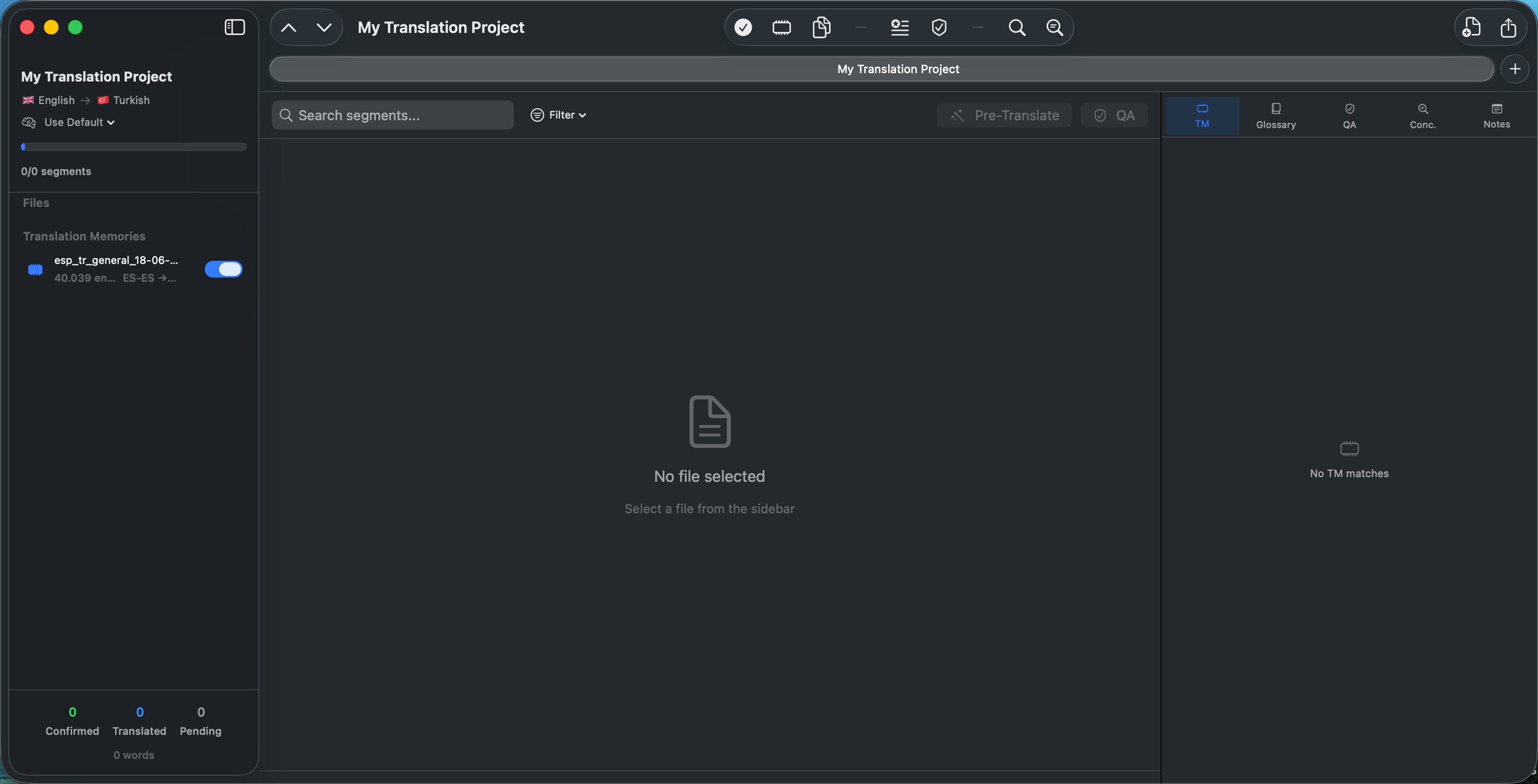
The main window is divided into three panels:
- Sidebar (left): Displays the project name, source/target languages with flags, the active LLM provider with a dropdown to change it, overall progress bar with segment count, a list of imported files with individual progress indicators, a Translation Memories section showing imported TMX files, and a statistics footer with confirmed/translated/pending counts and total word count.
- Segment Editor (center): Shows the translation segments for the selected file. Each row displays the segment number, source text, an editable target text field, and a status icon. The Find & Replace bar appears above the segment list when activated.
- Detail Panel (right): Contains five tabs — Translation Memory, Glossary, Quality Check, Concordance, and Notes.
Sidebar
The sidebar is divided into three sections:
Project Header (Top)
- Project name — Displayed as a headline at the top.
- Language pair — Shows source and target languages with their flag emojis and localized names (e.g., “English → Turkish”).
- LLM Provider indicator — Shows the active LLM provider for this project with its icon. Click to open a dropdown menu where you can:
- Select Use Default to follow the global setting from Settings.
- Select any configured provider (those with saved API keys) to override the default for this project only.
- The currently active provider is marked with a checkmark.
- Progress bar — Overall translation progress across all files. Turns green at 100%.
- Segment count — Shows translated/total segments (e.g., “42/120 segments”).
File List (Middle)
- Lists all imported files in the project. Selecting a file loads its segments in the editor.
- Each file row shows:
- File type icon — Indicates the source format (doc, pdf, xlsx, etc.).
- File name — Truncated to one line if long.
- Segment count — Number of segments in the file.
- Completion percentage — Colored green at 100%, orange otherwise.
- Circular progress ring — A small ring indicator on the right.
- Right-click context menu on any file offers:
- Export — Export that file directly.
- Remove File — Remove the file from the project (with confirmation dialog).
Translation Memories section — see the Translation Memory page for details.
Statistics Footer (Bottom)
- Confirmed (green) — Number of confirmed segments.
- Translated (blue) — Number of translated and reviewed segments.
- Pending (gray) — Number of untranslated segments.
- Total words — Word count across all project files.
Segment Editor
The central panel where translation work happens. From top to bottom:
Editor Toolbar (Top Bar)
- Search field — Type to filter segments by source or target text (case-insensitive, real-time filtering).
- Clear button (×) — Appears when search text is entered; clears the filter.
- Status filter — Dropdown menu to filter segments by status (All, Untranslated, Draft, Translated, Reviewed, Confirmed, Locked).
- File name — Displays the currently selected file name.
- Pre-translate button — Opens the Pre-translate configuration sheet for batch LLM translation.
- QA button — Runs quality checks on the current file.
Find & Replace Bar
Shown when toggled via ⌘F. Appears between the toolbar and segment list. Contains find field, replace field, navigation arrows, Replace and Replace All buttons, and a close button.
Batch Action Bar
Shown when multiple segments are selected. Displays the count of selected segments.
- Confirm Selected (green) — Confirms all selected segments.
- Merge Selected (purple) — Merges all selected segments into one, concatenating source and target texts in index order. Works with any combination of selected segments (contiguous or non-contiguous).
- Clear Translations (orange) — Clears target text for selected segments.
- Delete Selected (red) — Deletes selected segments after confirmation.
Segment List
- Each row shows: a selection checkbox, segment number (optional), source text, editable target text field, and a status icon.
- Selection checkboxes appear next to each segment number. Click the checkbox to toggle a segment in or out of the multi-selection set without needing ⌘+Click. A filled blue circle indicates the segment is selected; an empty circle means it is not. This provides a more natural way to build multi-segment selections for batch operations.
- When a single segment is selected, action buttons appear below the row: Copy Source, Copy Numbers (if source contains numbers), Split, Merge with Next, Translate (single-segment LLM translation).
- Source and target text font sizes are configurable in Settings > Editor.
Status Bar (Bottom)
- File statistics (left side): Total segment count, translated count (blue), and confirmed count (green) for the current file.
- Current segment (right side): Segment index number (e.g., “Segment 5”) and TM/MT match percentage badge (if available, color-coded by quality).
- Status messages: Shows “Saving…” or “Exporting…” with a spinner during operations, or status text like “Auto-saved.” after auto-save.
Detail Panel
The right panel with five tabs, each accessed via an icon tab bar at the top:
- TM (memory chip icon) — Translation Memory matches.
- Glossary (book icon) — Terminology matches and management.
- QA (shield icon) — Quality check results.
- Concordance (magnifying glass icon) — Full-text TM search.
- Notes (note icon) — Segment notes and metadata.
The active tab is highlighted with the accent color. See the individual help pages for full details on each tab.
Toolbar
- Add File — Import a file into the current project.
- Export — Export the selected file.
- Previous/Next Segment — Navigate between segments (also available via ⌘↑ and ⌘↓).
- Confirm Segment — Mark the current segment as confirmed.
- Apply TM Match — Insert the best TM match into the target.
- Copy Source — Copy source text to target.
- Batch Pre-translate — Pre-translate all untranslated segments with LLM.
- Run QA — Run quality checks on the current file.
- Find & Replace — Toggle the find & replace bar.
- Concordance — Switch to the concordance search tab.
Hover over any toolbar button to see a tooltip describing its function.